
Getting Started #
Start here to create your first project schedule. In just a few minutes, you'll have tasks on a timeline, linked together, with resources assigned — enough to see when your project is expected to finish.
On mobile devices, use taps instead of clicks, double-taps instead of double-clicks, and long-press instead of right-click.
Video #
Watch the video showing all the steps of this guide.
Creating a Basic Schedule #
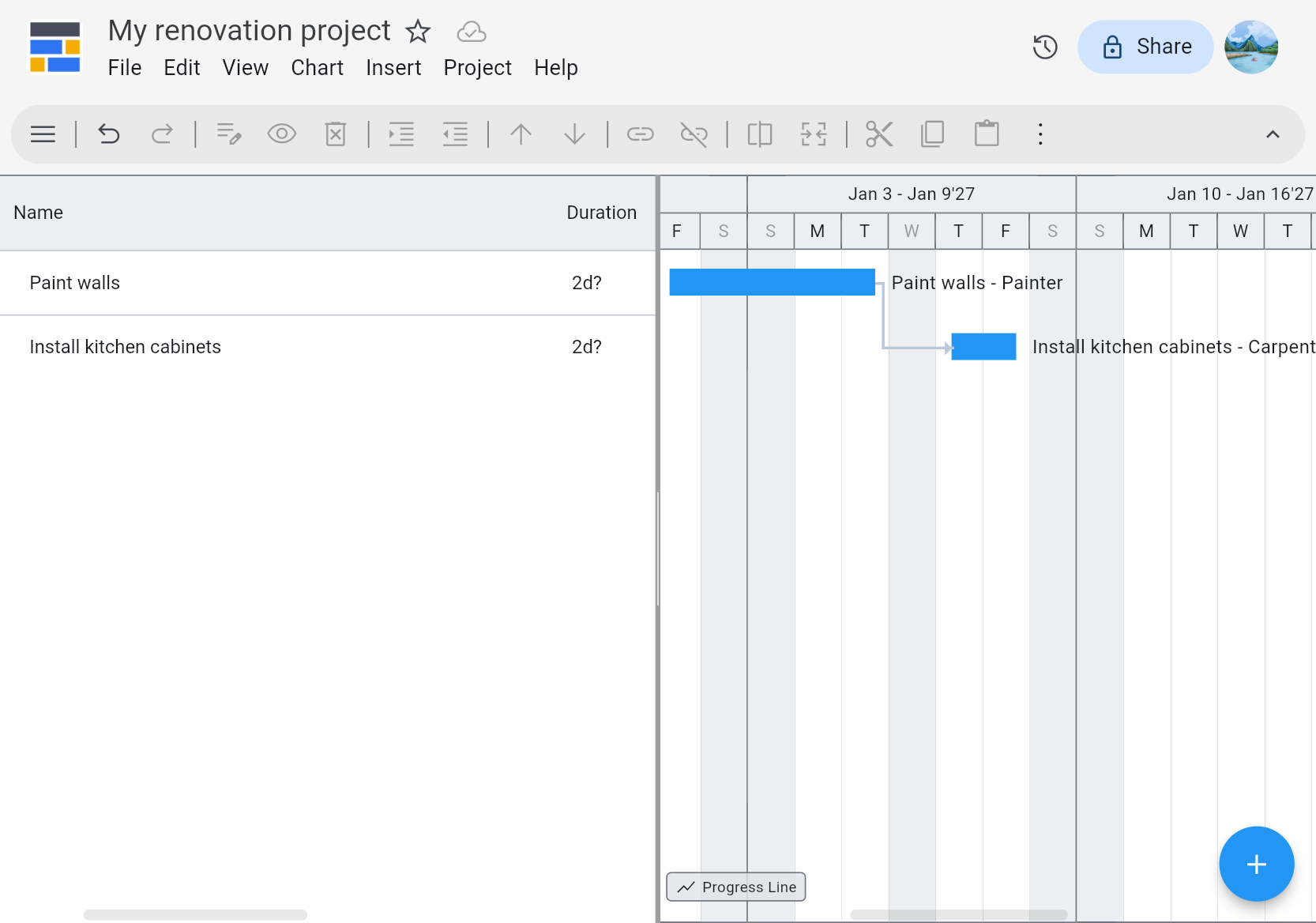
Let's say you have a small home renovation project with two tasks, one following the other.
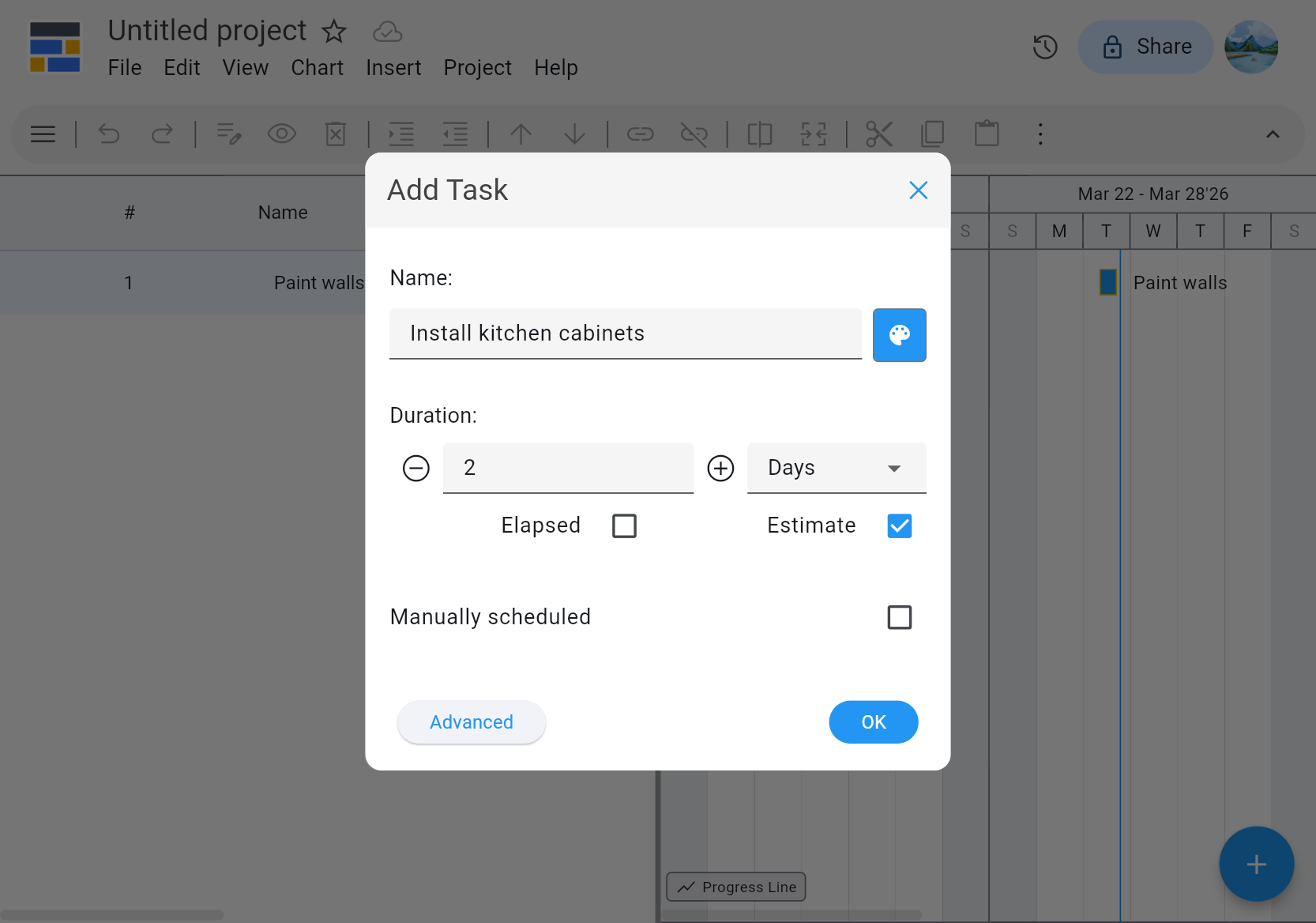
After clicking Create new, you're brought to a split screen with the task list on the left and the Gantt chart on the right. Add your tasks one after another by clicking the big + button in the bottom right. In the Add Task dialog, specify the Name and predicted Duration of each task.
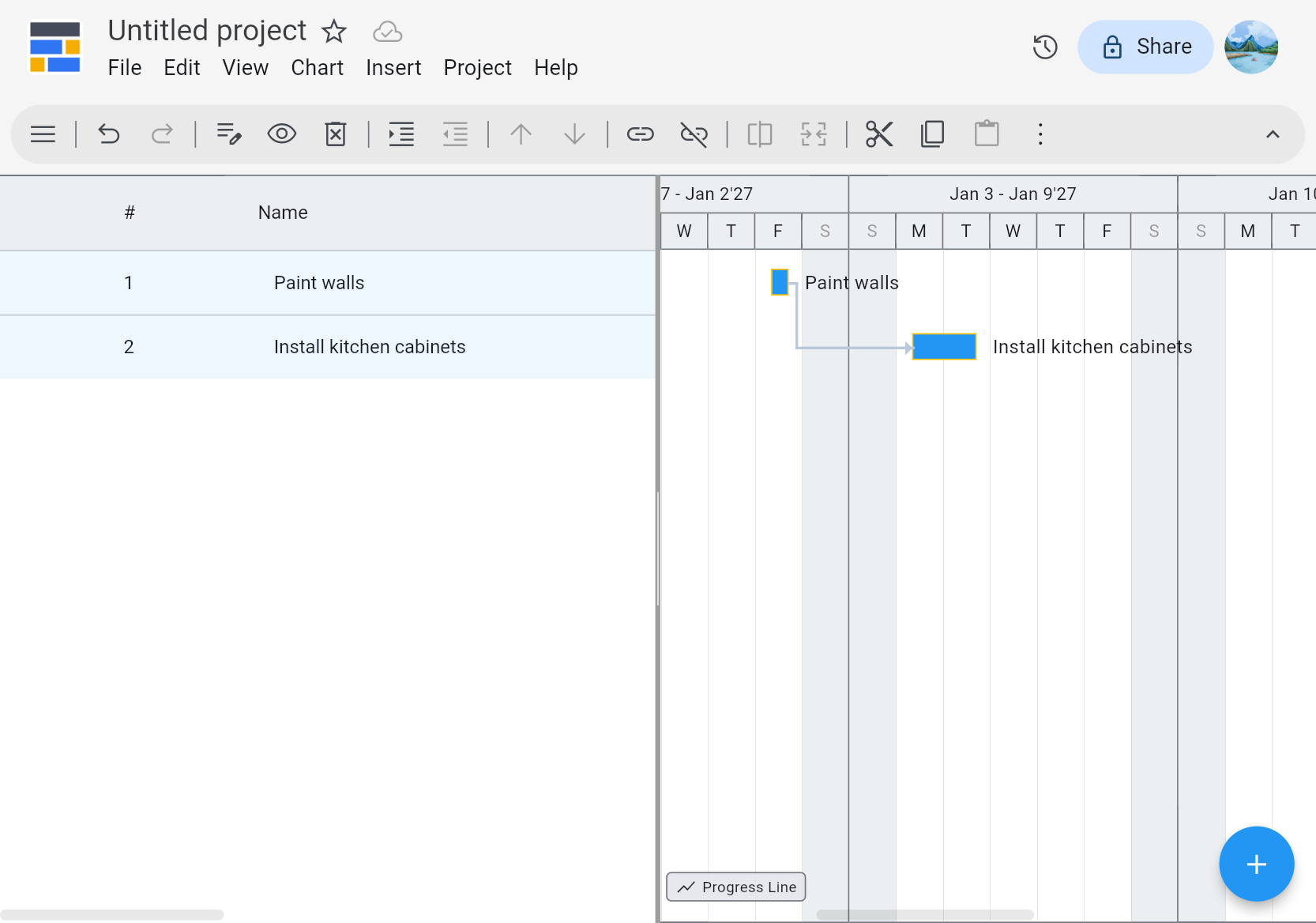
Select both tasks in the list on the left and then click the Link tasks toolbar button. This links the tasks and updates the Gantt chart.
- To select multiple tasks on Android and iOS, hold your finger a little longer while tapping each task in the list or the Gantt chart.
- On other platforms, click tasks in the list or the Gantt chart while holding
CtrlorShifton the keyboard.
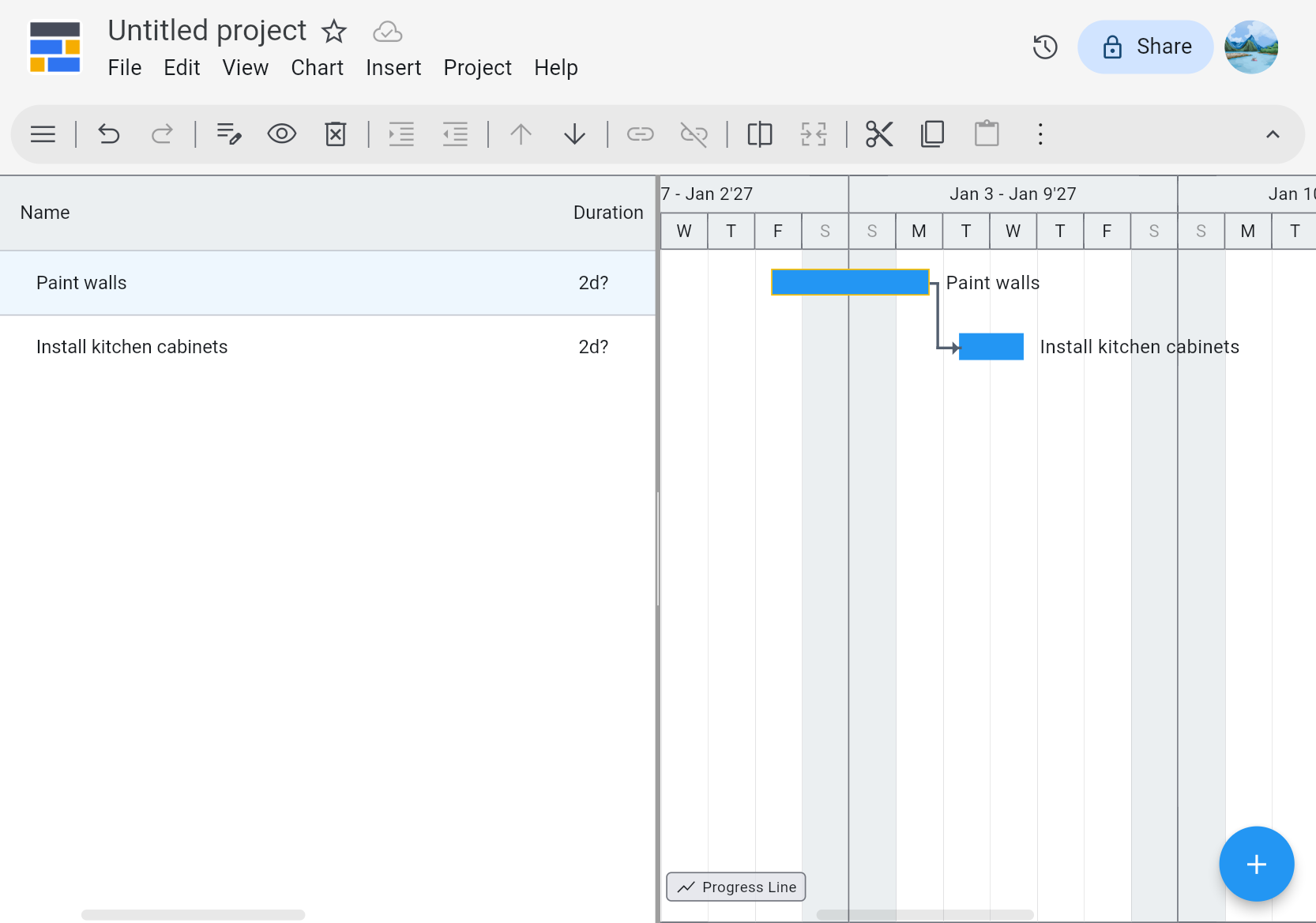
Now that the tasks are linked, try updating the duration of the first task. Double-click it in the list or the Gantt chart and edit the Duration field in the Task Properties dialog. You will see how this change affects the schedule by shifting the second task.
Setting the Project's Name and Start Date #
Your project might start on a different day than the default used by Ingantt.
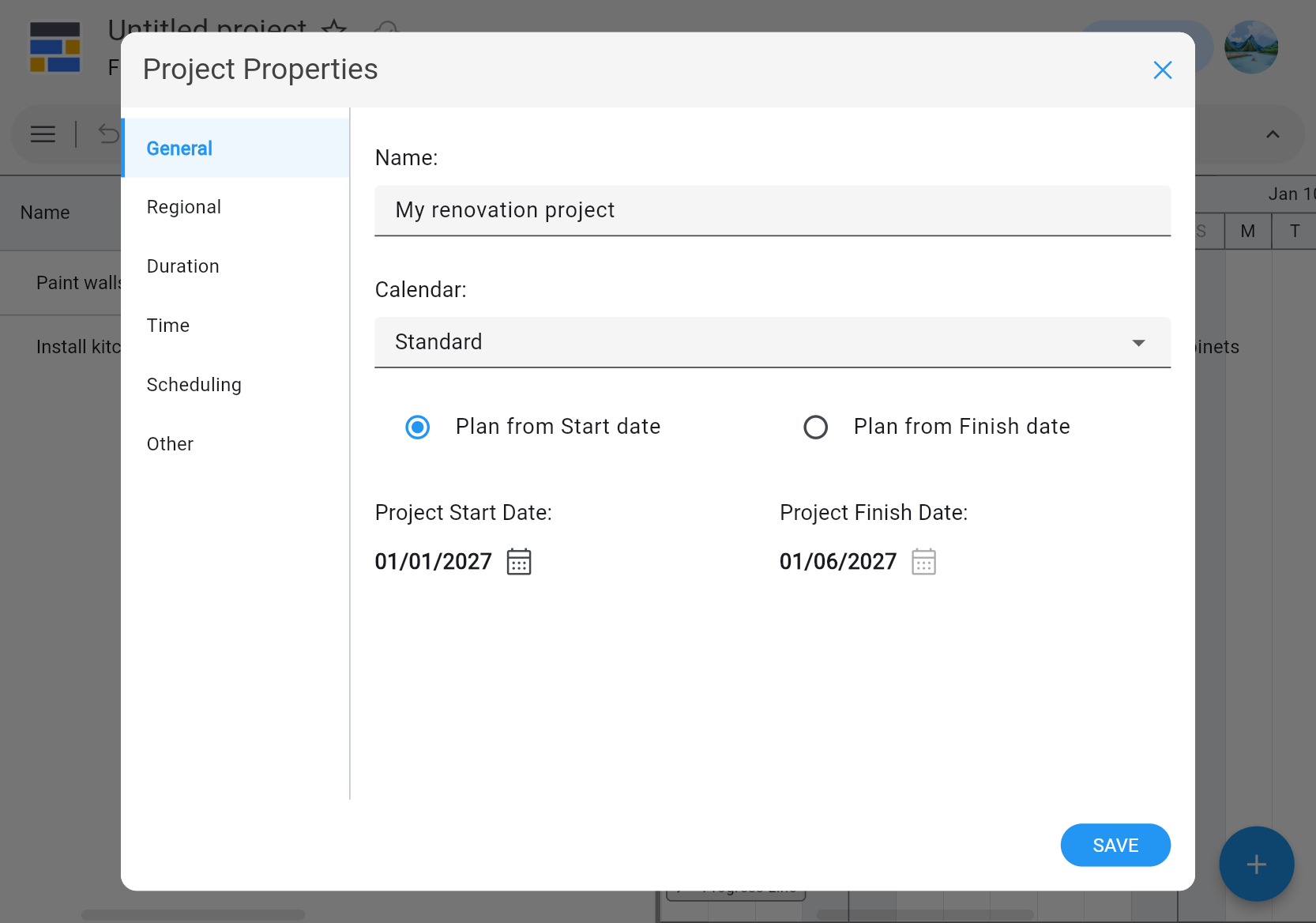
Open Project Properties using the navigation drawer or, on web and Windows, by clicking the project name in the header.
Set the new project start date in the Project Start Date field and change the Name of the project while you're there.
With the simplicity of the basic schedule, you can already tell when the project is expected to end by looking at the Gantt chart.
Adding and Assigning Resources #
Let's say a different person will handle each task in your project.
Open the navigation drawer and switch to the Resources view.
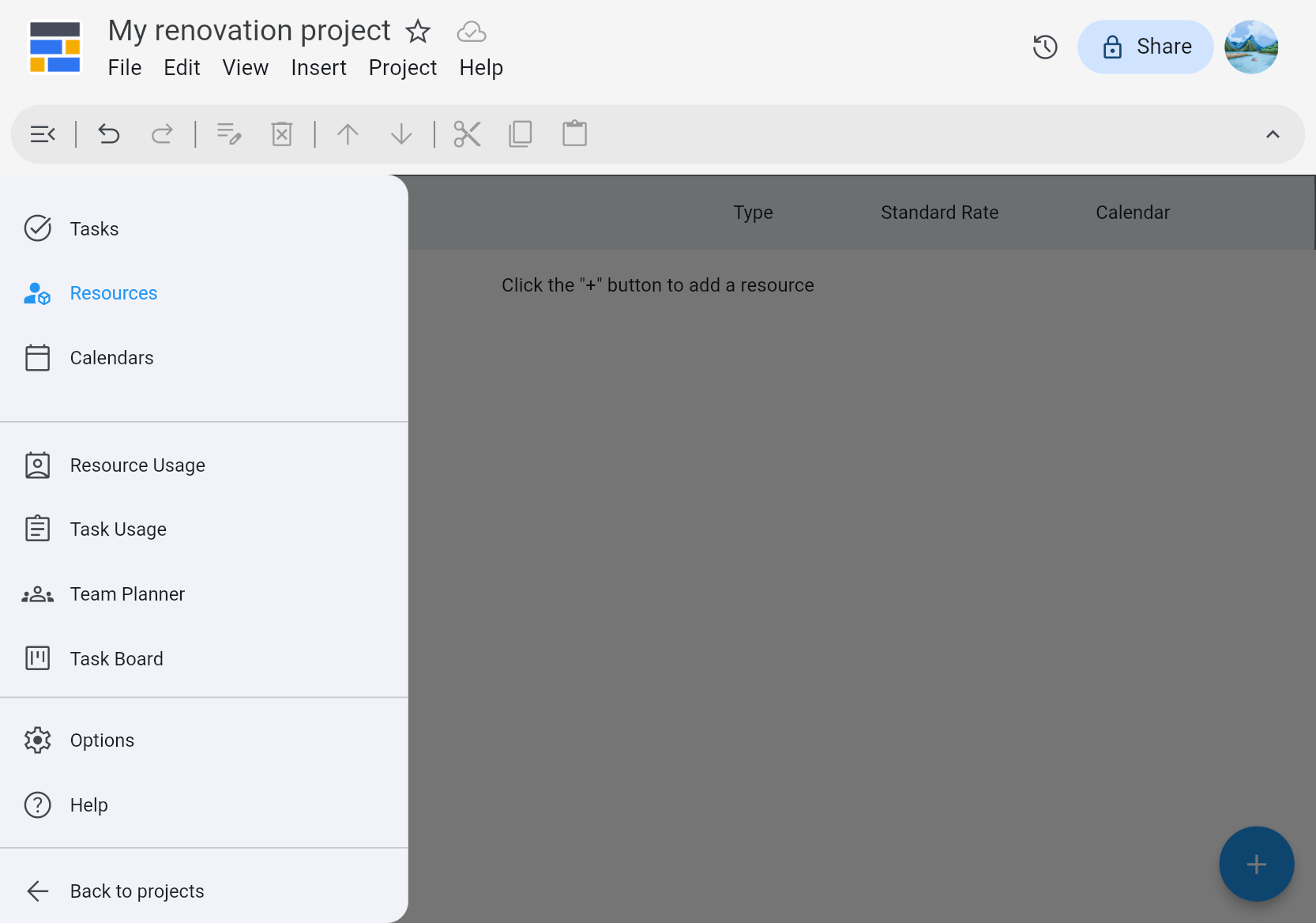
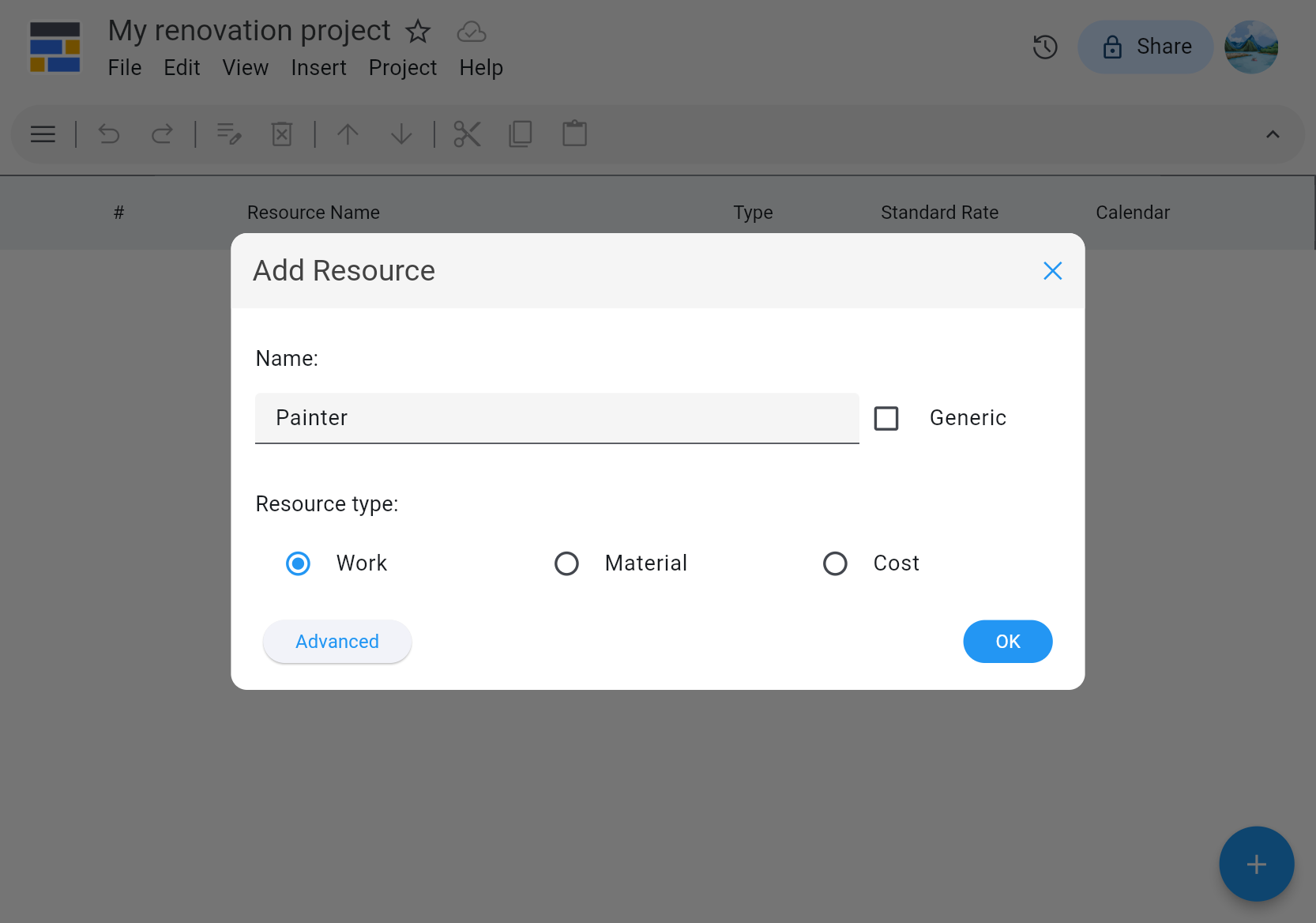
Click the big + button to open the Add Resource dialog, enter a Name for the resource, and save. Repeat these steps to add another work resource.
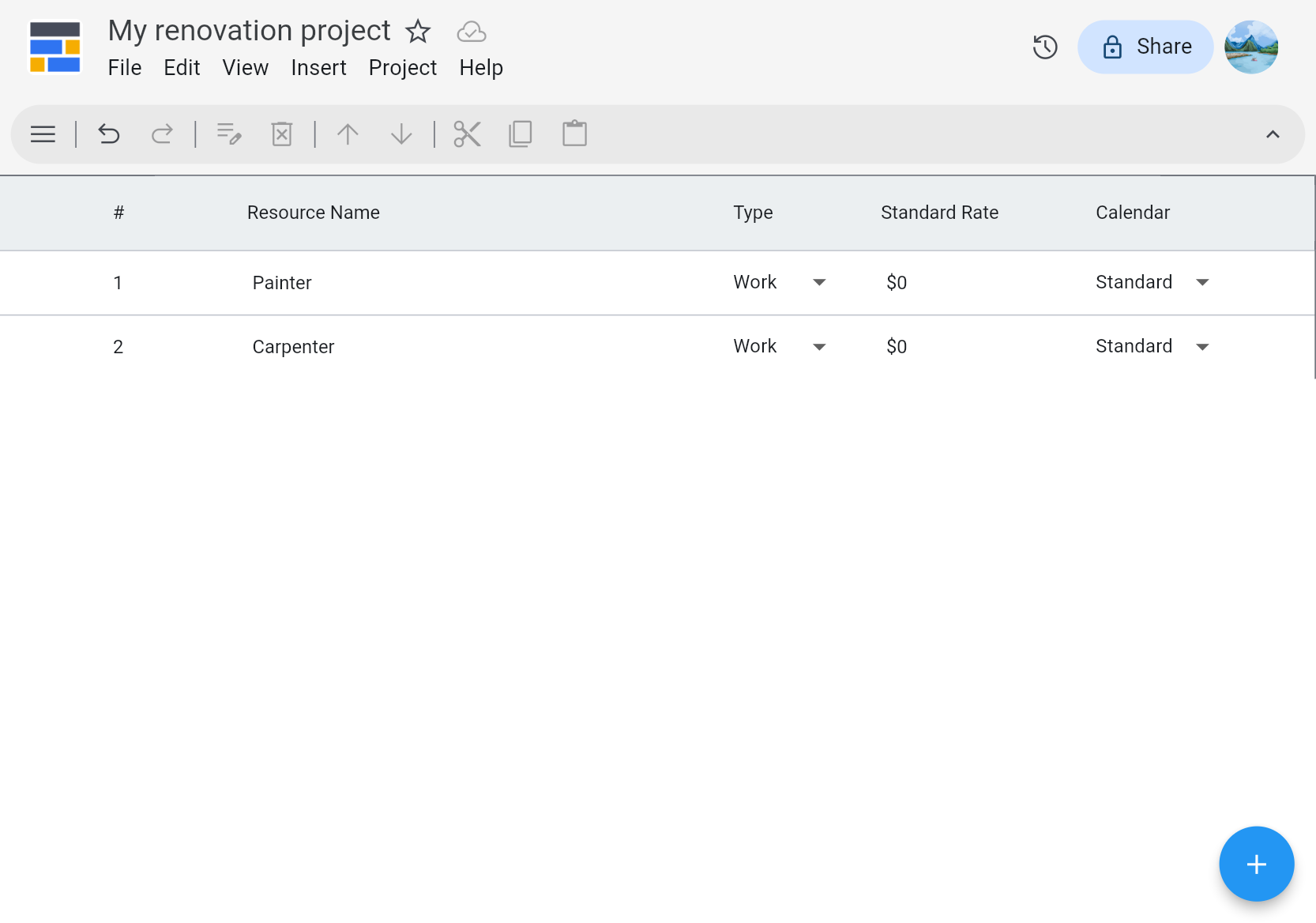
Using the navigation drawer, switch back to the Tasks view. Double-click your first task in the list or the Gantt chart to open the Task Properties dialog.
Switch to the Resources tab, check the first resource to assign this person to the task, and save.
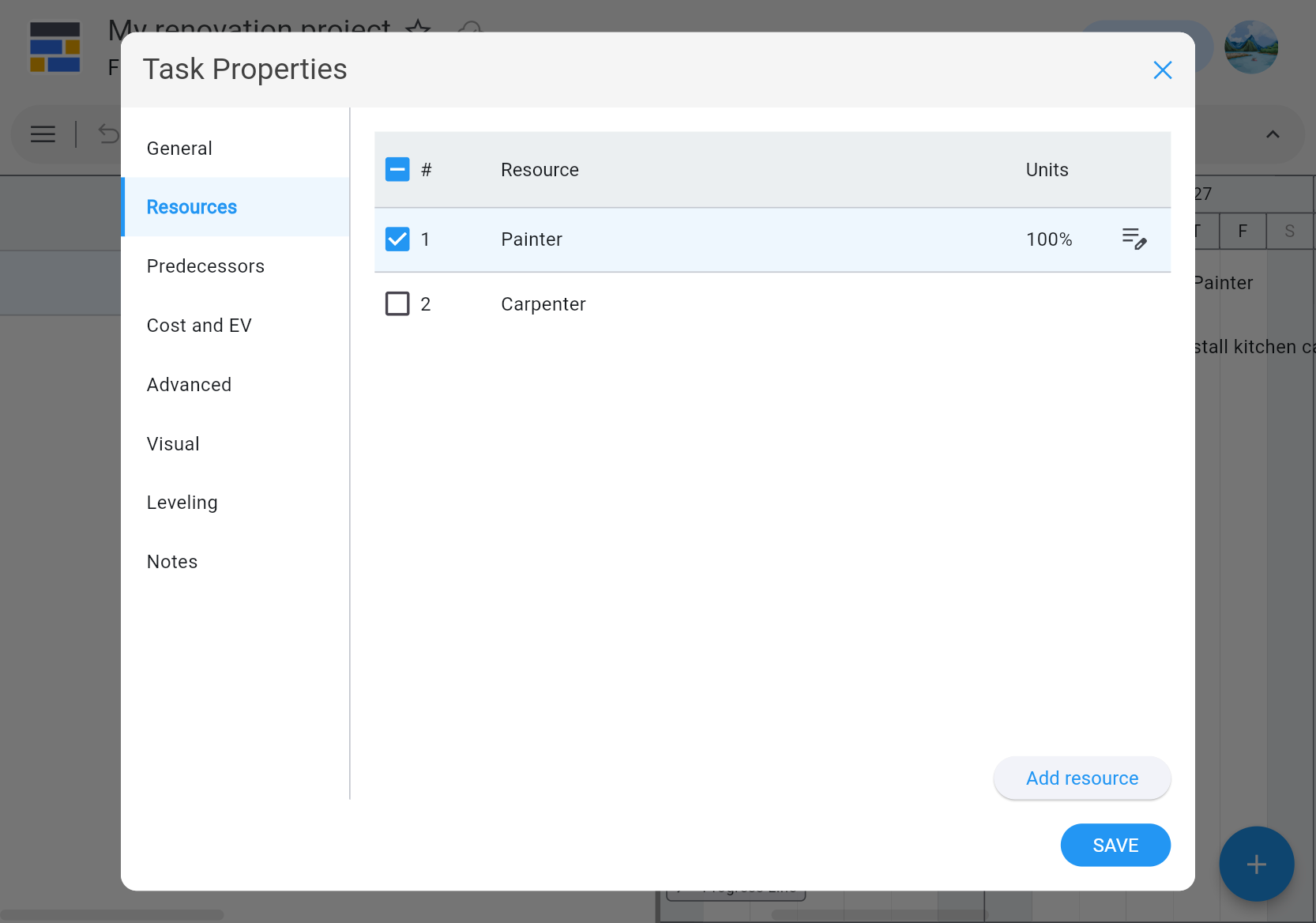
Repeat the same steps for your second task and the second resource.
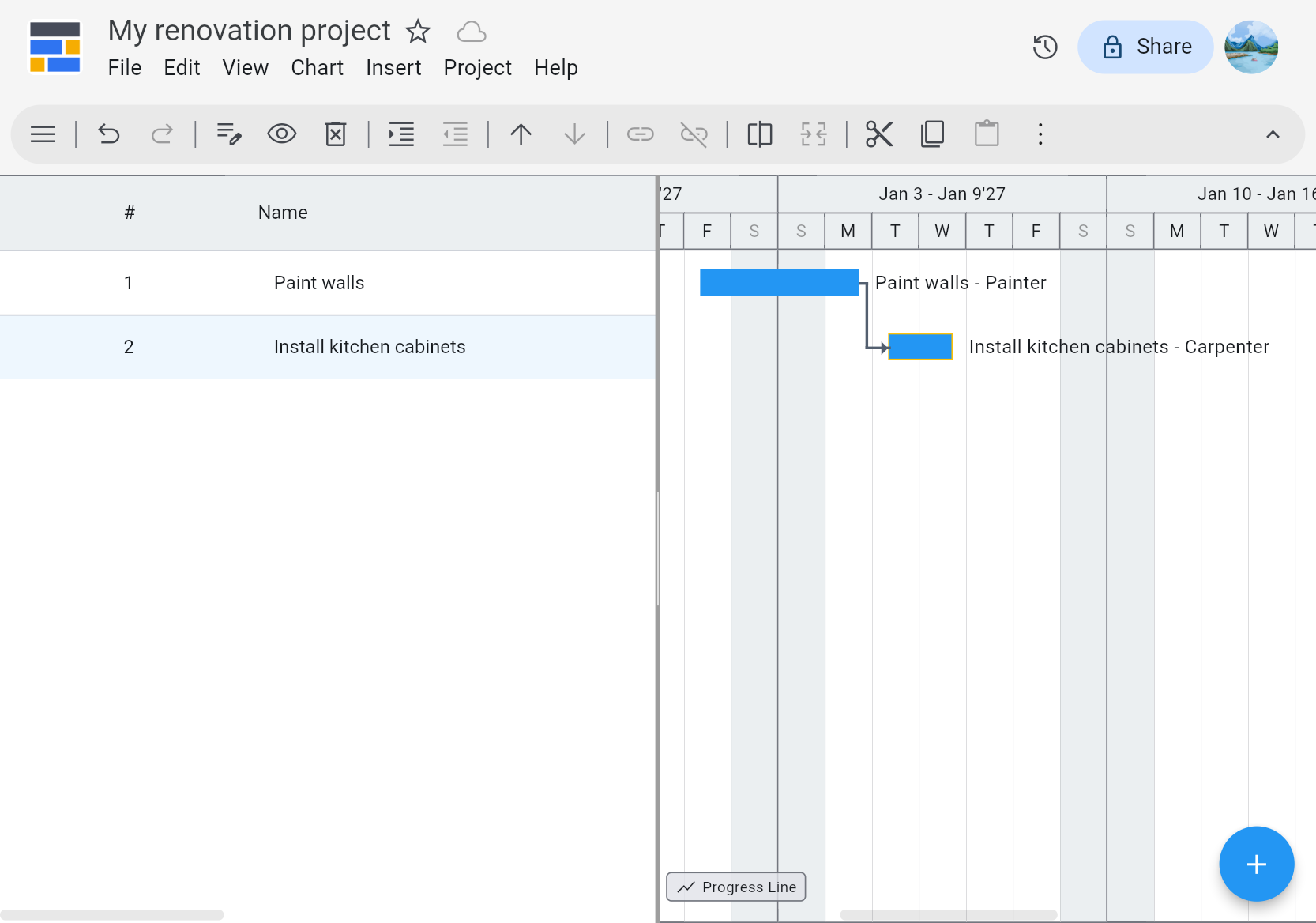
Setting Vacations #
People may have different events during the course of your project that affect its timeline.
Suppose the resource doing the first task in your project needs a day off during that task.
To configure this, use the navigation drawer to go to the Resources view.
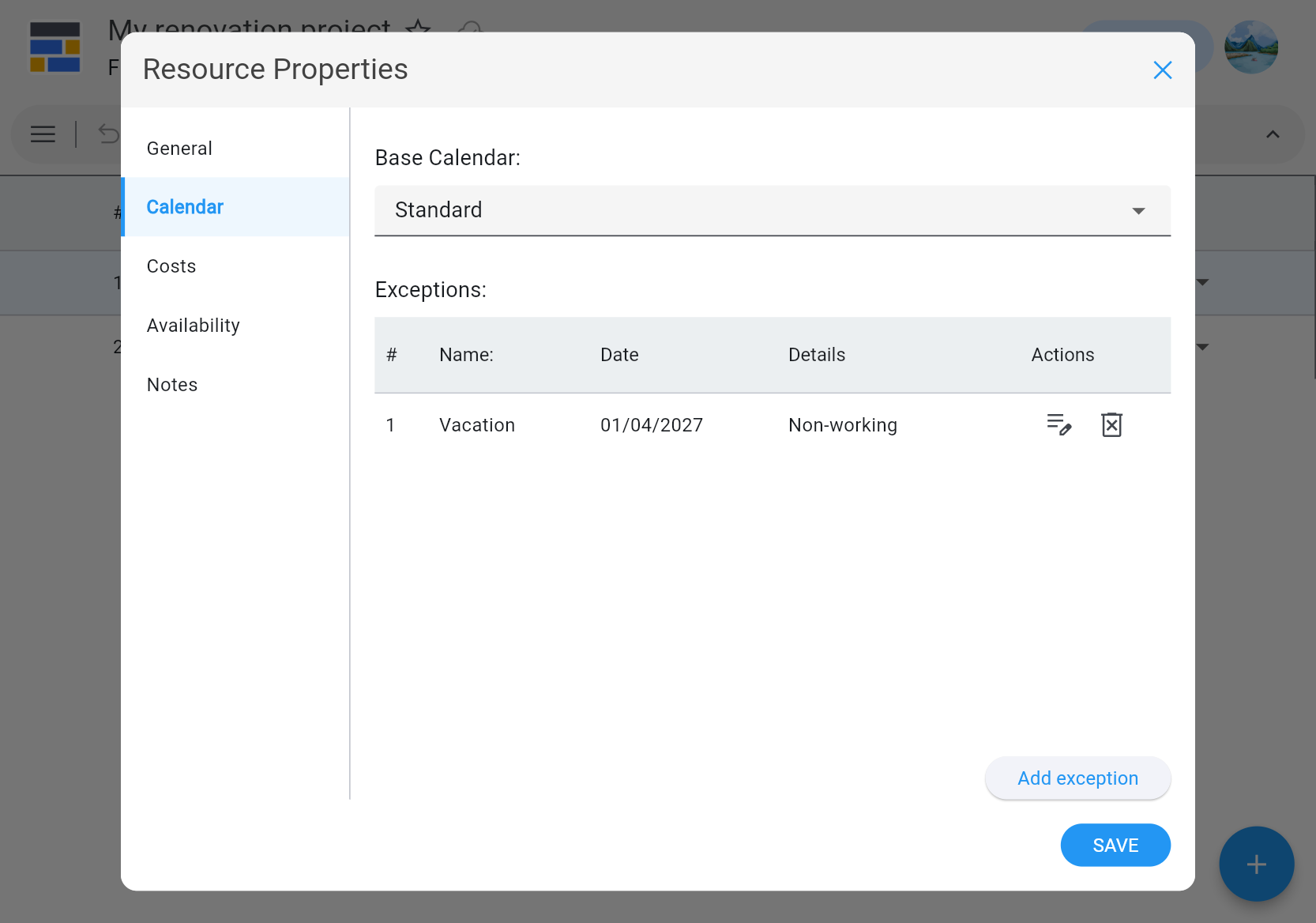
Double-click the resource to see Resource Properties. Go to the Calendar tab and click the Add exception button. Choose one of the days during your project, leave the list of working times empty, and save.
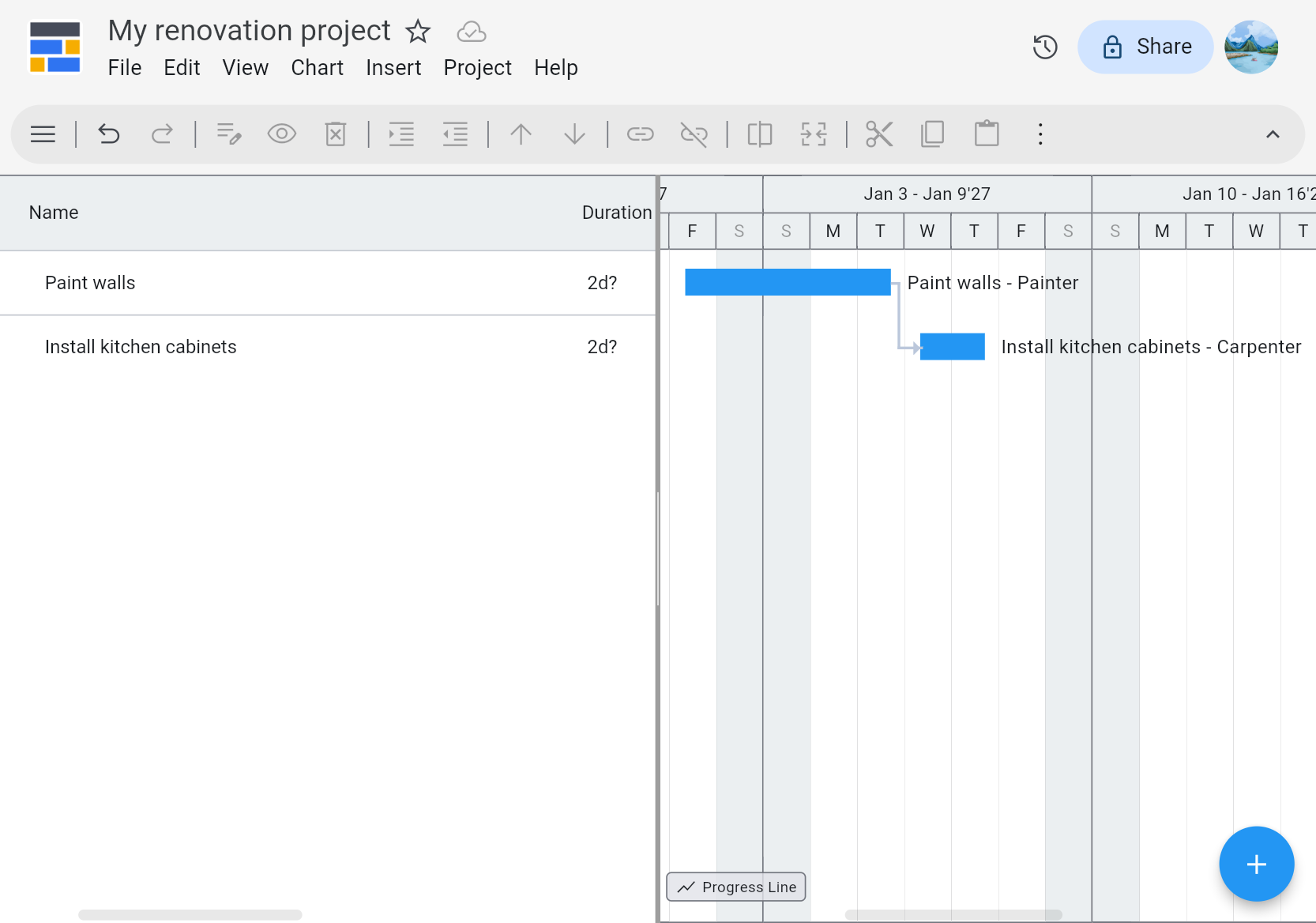
Using the navigation drawer, go back to Tasks and see how your schedule has changed. The second task has shifted due to its dependency on the first.
You can configure not only vacations but also other changes to a person's schedule. For example, by adding working time to the Exception, you can specify that the resource works only during specific hours on that particular day.
Setting Holidays #
Imagine there's a holiday during your project, a day when no work is done.
Vacations are configured through each resource's calendar. Days that affect everyone, however, are configured in the project's calendar. The default project calendar is called Standard and already indicates that no work is done on weekends.
To configure holidays, use the navigation drawer to go to the Calendars view. Double-click Standard to see Calendar Properties. Click the Add exception button. Choose one of the days during your project, leave the list of working times empty, and save.
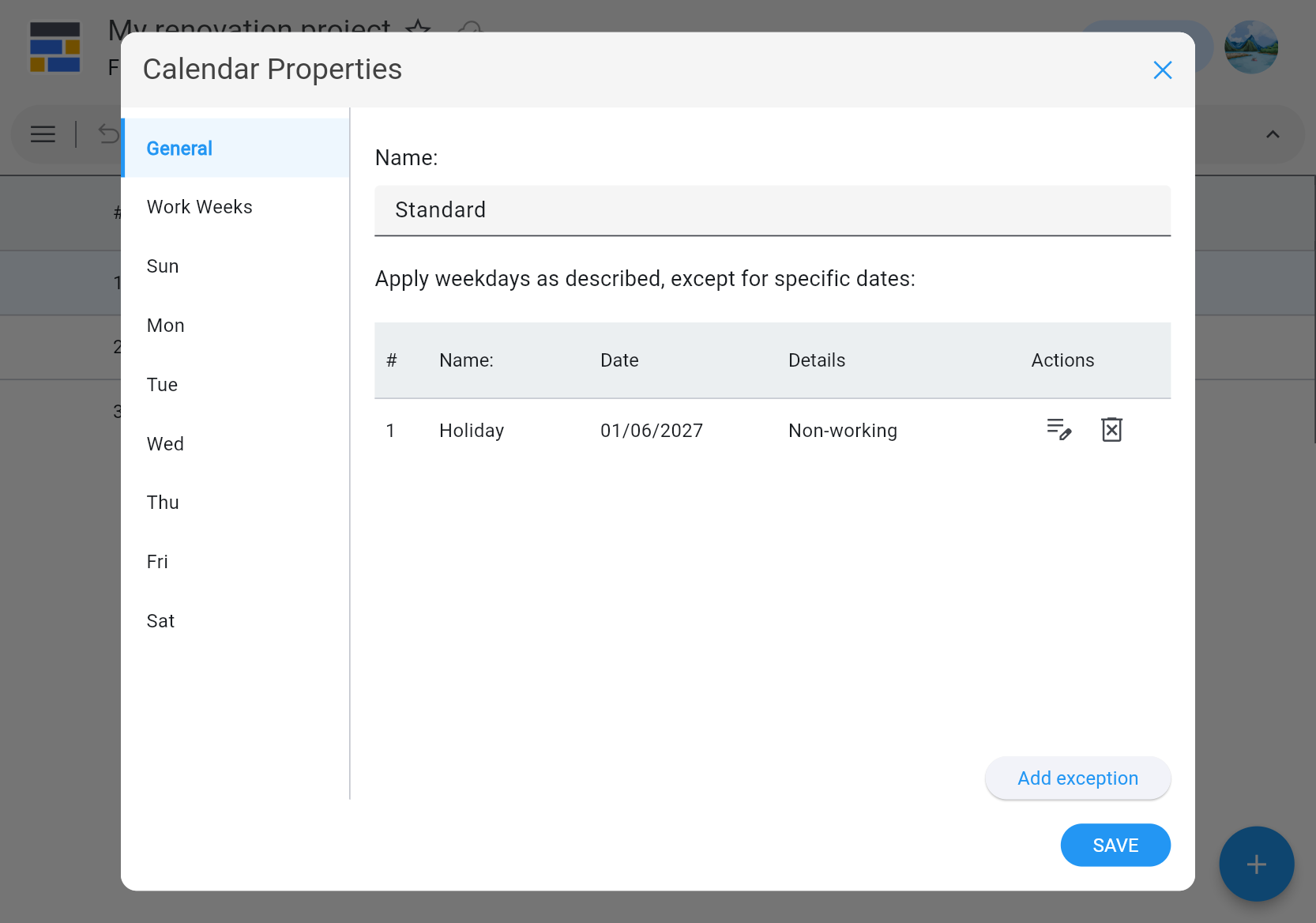
Using the navigation drawer, go back to the Tasks view and see how your project has changed. The tasks are shifted, and the holiday is shown similarly to weekends in the Gantt chart.
Using the same approach, you can configure not only holidays but also other changes to everyone's schedule. For example, by adding working time to the Exception, you can specify that everyone works only during specific hours on that particular day.
You can also check the tabs representing each weekday in Calendar Properties. If your whole team leaves earlier on Fridays or works on Saturdays, you can configure this on the corresponding tabs.