
Tasks #
Every schedule starts with tasks. Define what needs to be done, how long it will take, and when it's due. Once your tasks are in place, you'll see your project timeline take shape in the Gantt chart.
Summary Tasks #
Summary tasks help you organize your tasks by grouping them together. To create a summary task, select the tasks you want to group, then click the Increase Indent button on the toolbar to indent them. To convert a summary task back to a regular task, select all its subtasks and click the Decrease Indent button to remove their indentation.
Since summary tasks group other tasks, their properties are derived from their subtasks rather than set directly. Their duration represents the overall duration of all the tasks within the group: the finish date of a summary task is the latest finish date among its subtasks.
A summary task also displays the overall percent complete, total cost, and total work of its subtasks.
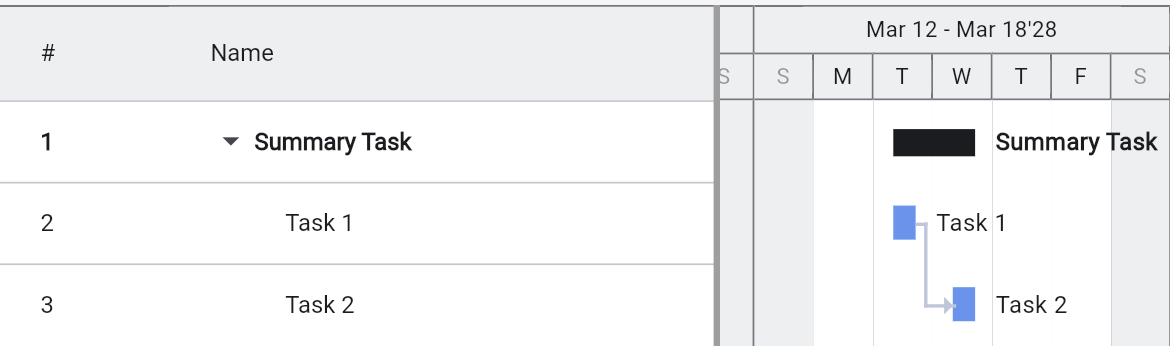
In the Gantt chart, summary tasks are shown as black bars. In the task list, you can expand or collapse summary tasks to show or hide their subtasks.
Root Summary Task #
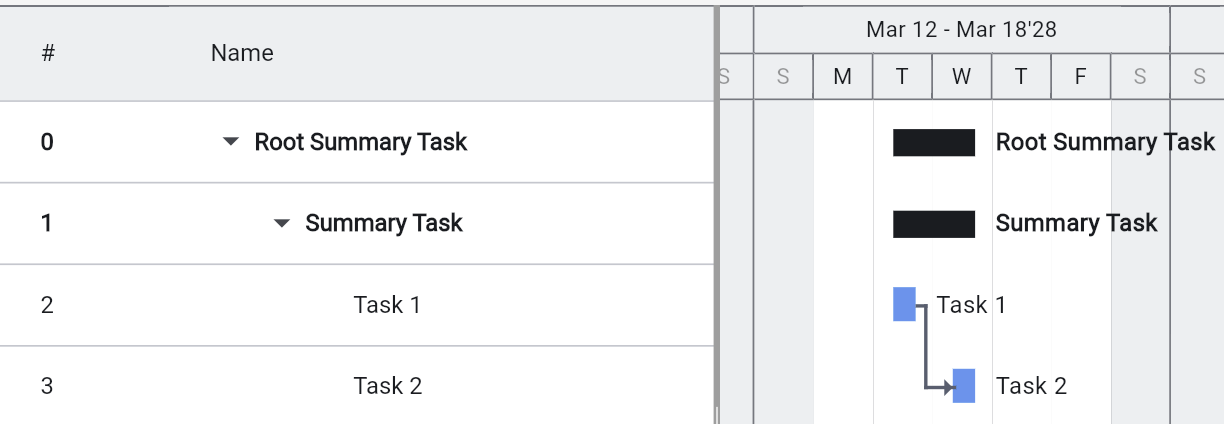
In Ingantt, there's always a summary task for your entire project. This task is task number 0, above all of your tasks.
The root summary task might not be visible by default. To change this, check Show root summary task in the View menu or the Options dialog.
Just like any other summary task, the root summary task shows the overall data of its subtasks. Since all tasks in your schedule are its subtasks, the root summary task shows the overall data of your entire project.
The name of the root summary task is the same as the name of the project.
Manually Scheduled Tasks #
By default, all tasks in Ingantt are auto-scheduled — their start and finish dates are calculated by the scheduling algorithm based on dependencies, constraints, and calendars.
You can switch a task to Manually scheduled mode using the checkbox in the Task Properties dialog. When a task is manually scheduled:
- It is not affected by the scheduling algorithm — its dates are set by you
- You can enter Start and Finish dates using the date fields or the date picker
- You can type text values (such as "TBD", "early March", or "2-3 weeks") instead of actual dates when you are not yet sure about the timing
- A pin icon is shown for manually scheduled tasks in the task list
Use manually scheduled tasks as placeholders when the exact timing is unknown, or when dates are fixed by external factors.
Recurring Tasks #
Recurring tasks represent activities that repeat on a regular schedule, such as daily standup meetings, weekly reviews, or monthly reports. You can create recurring tasks via the Insert menu by choosing Add recurring task.
When creating a recurring task, you specify:
- Occurrence duration — The duration of each individual occurrence
- Recurrence pattern — Daily, weekly, monthly, or yearly pattern with a start date and end condition (no end, end by date, or end after N occurrences)
- Working days only — Limits occurrences to working days
Recurring tasks appear as a summary task containing the individual occurrences. Each occurrence can be completed independently. Deleting a recurring task prompts you to choose whether to delete the entire series or just the selected occurrence.
Split Tasks #
A task can be split into non-contiguous parts, representing interruptions in work. To split a task, select it and choose Split task from the toolbar or the right-click context menu. The Split Task dialog offers two modes:
- By duration — Specify a gap offset from the task start and a split duration
- By dates — Specify the stop and resume dates for the split
Split tasks display as separate bars with dotted connectors between parts in the Gantt chart. Each split part has its own resize handle, and dragging a part so that it meets an adjacent part merges the two. To remove a split, select the task and choose Remove split from the toolbar.
Inactive Tasks #
A task can be marked as inactive by unchecking the Active checkbox on the General tab of the Task Properties dialog, or by using the Inactivate task option in the Edit > Display submenu or the right-click context menu.
Inactive tasks are:
- Excluded from scheduling — they do not affect the critical path or other tasks
- Excluded from summary task rollups for duration, work, cost, and % Complete
- Excluded from resource overallocation detection and auto-leveling
- Excluded from Earned Value calculations
Inactive tasks remain visible in the task list and Gantt chart but appear at reduced opacity with strikethrough text. Their dates are preserved for reference.
Inactivating a summary task cascades to all its subtasks. Reactivating a subtask automatically reactivates its parent summary if needed. Tasks with actual progress (% Complete > 0) cannot be inactivated.
Use inactive tasks to keep "what-if" scenarios in your schedule without affecting the active plan.