
Critical Path #
These are the tasks you cannot afford to delay — any slip pushes out the entire project. Identify them early, watch them closely, and you'll know exactly where to focus to keep your deadline.
Critical Tasks #
Once you put your plan into action, some tasks finish earlier than planned — and others do not. Some tasks may take longer without extending the project timeline. These tasks have room to spare, known as slack.
Other tasks have zero slack — any delay shifts the project's end date. These are called critical tasks. To keep your project on schedule, pay special attention to them when tracking progress.
A task is also critical if:
- It has a Must start on or Must finish on constraint
- It has an As late as possible constraint in a project planned from the Start date
- Its finish date equals or exceeds its deadline
- It has negative slack — a scheduling conflict where constraints force the task earlier than its dependencies allow
Tasks that are 100% complete are never marked as critical, regardless of other conditions.
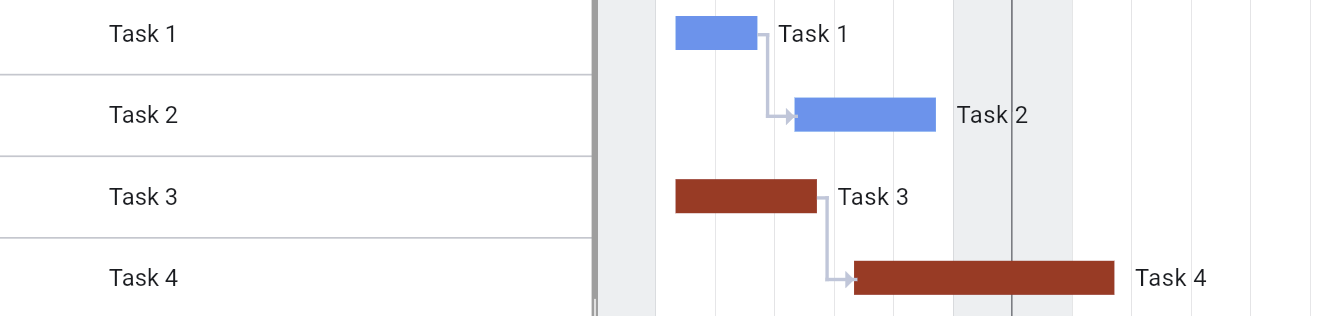
Ingantt automatically detects critical tasks. If the Highlight critical tasks option is enabled (via the View menu, the Chart menu in the menu bar, or the Options dialog), these tasks are displayed in red.
Tasks with negative slack also display a warning icon in the task list, indicating a scheduling conflict. This typically occurs when a Start no later than or Finish no later than constraint conflicts with the task's dependencies.
Critical Path Options #
On the Other tab of the Project Properties dialog, you can configure how the critical path is calculated:
- Calculate multiple critical paths — When enabled, each disconnected group of linked tasks gets its own critical path. When disabled (the default), tasks without successors derive their late finish from the project finish date.
- Critical slack limit — By default, tasks with zero or negative slack are critical. You can increase this threshold so that tasks with slack up to the specified number of days are also considered critical.